
EB tresos
AutoC reads and writes MCAL configuration through EB tresos. You need the tresos install directory and project path, and must start from the project root that contains .project.
Quickstart
- Go to the project root and start AutoC:
cd D:\projects\my-eb-project   # folder with .project
autoc
The footer should show the project path (not the autoc install folder).
Log in (first time): type
/loginin AutoC's input box and paste your WhyEngineer API key.Set paths: type
/settings, select EB Tresos:
| Field | Value |
|---|---|
| Install path * | Tresos install root, e.g. C:\EB\tresos (contains bin\tresos_cmd.bat) |
| Project path * | Leave empty; AutoC uses .project in the current directory |
* Required
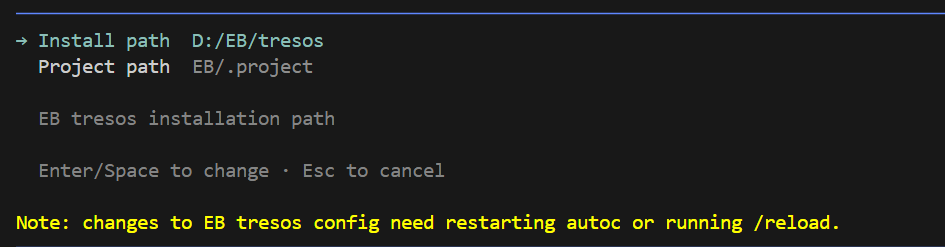
- Load the project: press
Esc, then type/reload.
Success: an EB tresos line appears in the startup area (Project, Target, Enabled modules, etc.).

Paths are saved to ~/.autoc/agent/settings.json by /settings — no manual JSON file needed. Per-project overrides and module filters: Settings — EB tresos. Issues: Troubleshooting — EB tresos.
Commands
| Command | Purpose |
|---|---|
/eb | Menu: modules / save / verify / generate / autocalc |
/eb modules | List enabled EB modules |
/eb save [module] | Write to XDM; omit module to save all enabled |
/eb verify [module] | Save, then verify |
/eb generate [module] | Save, then generate |
/eb autocalc | Save all enabled modules, then AutoCalc |
Change AUTOSAR parameters with EB tools (set_value, etc.), not by editing .xdm / .arxml directly.
Advanced
Module filters — large projects: eb.includeModules / eb.excludeModules in .autoc/settings.json, or autoc --modules Mcu,Port,Dio for one launch. See Settings — EB tresos.
Dual toolchain — EB + DaVinci: EB ↔ DaVinci ECUC sync; EB + ETAS: EB and ETAS configuration sync.
System Template — Com, PduR, Rte foreign references need system ARXML: /system import or autosar.systemTemplatePaths. See System Template.