
Enterprise licensing (License Server)
AutoC enterprise deployments use a License Server for license enforcement. With enterprise licensing, you can connect and run custom LLM models (not limited to the WhyEngineer catalog).

Download License Server
| Platform | Download |
|---|---|
| Windows x64 | license-server-windows-x64.zip |
| Linux x64 | license-server-linux-x64.tar.gz |
Extract license-server (or license-server.exe). The daemon listens on 0.0.0.0:9847 by default.
Request a license (.lic)
When contacting AutoC sales or support, provide:
- Company / project name
- Concurrency limit (concurrent
autocclients) - Validity period (start and end dates)
- All physical NIC MAC addresses on the machine running license server (must be from one host)
Collect MAC addresses
On the server running license server, collect all physical NIC MACs from that machine (do not combine MACs from different computers):
Windows (PowerShell):
getmac /v /fo listLinux:
ip link show | grep -E '^[0-9]+:|link/ether'You can also view and copy local MACs from the Licenses tab in license-server gui. Use physical NIC MACs (e.g. AA:BB:CC:DD:EE:FF).
Contact
Enterprise .lic files are issued by the vendor. Email the details above to frankie@whyengineer.com to request a license.
Import licenses
On the server running license server:
- Run the import GUI:
# Windows
.\license-server.exe gui# Linux
chmod +x license-server
./license-server gui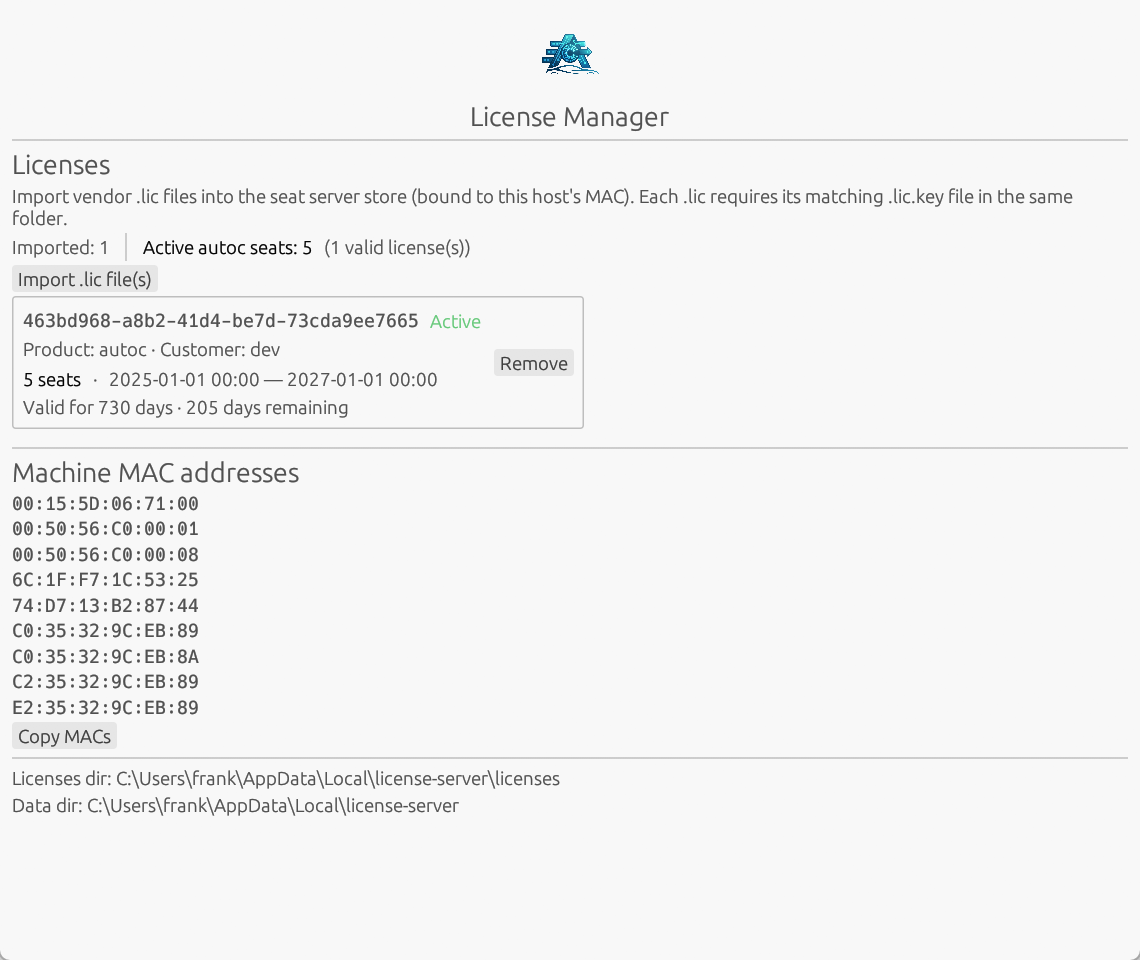
- Import vendor
.licfiles through the UI. Import requires every MAC listed in the file to be present on this host (extra local NICs are fine; all licensed MACs must match). - Stored under:
| OS | Path |
|---|---|
| Windows | %LOCALAPPDATA%\license-server\licenses\ |
| Linux | ~/.local/share/license-server/licenses/ |
Override with LICENSE_SERVER_DATA_DIR if needed.
OAuth / SSO
If your enterprise LLM gateway uses IdP login, an administrator configures OIDC on the license server; users sign in on the client via /login → OAuth / SSO in the browser.
Server: configure OIDC in license-server gui
In the same GUI, switch to the OAuth / SSO tab (license-server gui):
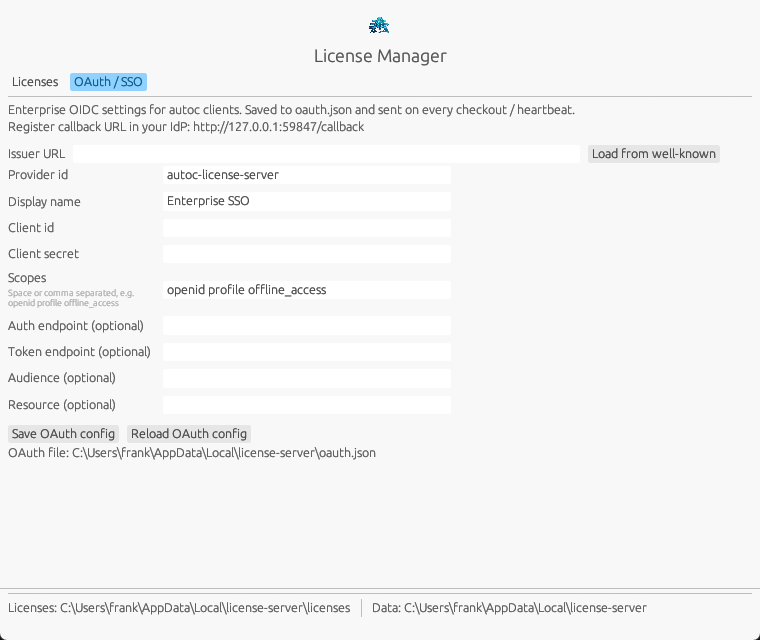
- Provider id — default
autoc-license-server - Issuer URL — IdP issuer; click Load from well-known to fetch authorization / token endpoints
- Client id, Scopes (space- or comma-separated, e.g.
openid profile offline_access); optional Client secret - Click Save OAuth config
Register this fixed callback in your IdP: http://127.0.0.1:59847/callback.
After saving OAuth on the license server, or after setting the license server address on a client for the first time, restart autoc.
Client: sign in and use
- Set the license server address in
/settingsand restartautoc(see Configure AutoC clients below) /login→ OAuth / SSO- Pick API style, fill in Base URL and Model ids (no API key), then save and continue
- Complete IdP login in the browser
/model— select your configured model
IT can pre-deploy gateway and model settings; users only need steps 2–5.
Start License Server
After import, start the license server service on the same machine:
# Windows
.\license-server.exe server# Linux
./license-server serverBuilt-in mTLS is used; port 9847. Restarting license server clears in-memory sessions.
Optional connectivity check:
.\license-server.exe check --server 127.0.0.1:9847Configure AutoC clients
Install AutoC
Don't have the client yet? See Getting started — Download and install.
Configure License Server (/settings)
License server address configuration:
- Run
autoc, open/settings - License server → Server address
- Set the license server address, e.g.
192.168.1.10:9847(IP of the server running license server) - Restart
autoc
Configure LLM models (API key)
- Run
autoc, open/login - Choose API key
- Select API style (OpenAI-compatible / Anthropic-compatible), then fill in Base URL, API key, and Model ids
- Choose Save and apply
- Run
/modelto switch to your configured model
FAQ
Q: “License server address is not configured”
A: Set Server address in /settings and restart autoc.
Q: License server is configured but /login is still WhyEngineer-only, or OAuth is unavailable
A: Ensure license-server server is running, then fully quit and restart autoc.
Q: Connection failed or concurrency limit reached
A: Ensure server is running, firewall allows TCP 9847, and max_seats in the license is not exceeded.
Q: Import fails (MAC mismatch)
A: Every MAC in the .lic must be present on the server running license server. Run license-server gui on that server to copy all local MACs and request a license that includes them. Do not mix NIC MACs from multiple machines in one request.
Q: License server hardware or NIC change
A: Request a new .lic for the new MAC and import on the new server.