
DaVinci Configurator
Beta
Beta feature; DaVinci Configurator 5 only. Report issues via Bug report.
AutoC reads and writes ECUC configuration through Vector DaVinci Configurator. You need the Configurator install directory and project path (contains *.dpa). Start from the project root.
Quickstart
- Go to the DaVinci project root (contains
*.dpa) and start AutoC:
cd D:\projects\my-davinci-project
autoc- Set paths:
/settings→ DaVinci Configurator:
| Field | Value |
|---|---|
| Configurator path | Install directory; leave empty for ${SIP}/DaVinciConfigurator (${SIP} from .dpa, must contain Core/DVCfgCmd.exe) |
| Project path | Leave empty; uses current directory |
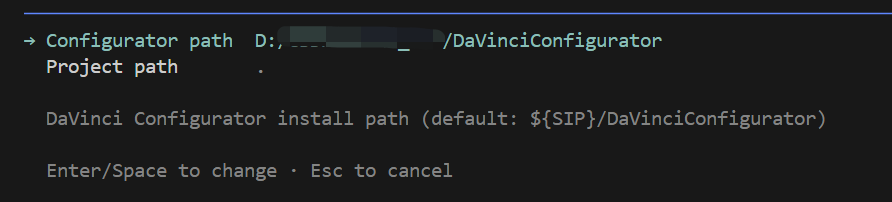
- Press
Esc, then/reload.
Success: a DaVinci Configurator line in the startup area. Fields: Settings — DaVinci Configurator.
Commands
| Command | Purpose |
|---|---|
/davinci | Menu: modules / save / verify |
/davinci modules | List BSWMD modules in SIP |
/davinci save [module] | Write ECUC ARXML |
/davinci verify [module] | Save, then DVCfgCmd AutocVerify |
Before verify, AutoC copies .dpa to *.autoc.dpa; scripts live in <project>/.autoc/davinci-scripts/.
Advanced
Module filters — davinci.includeModules / excludeModules or autoc --modules EcuC,PduR. See Settings — DaVinci Configurator.
Mixed projects — save MCAL with /eb save (auto-syncs DaVinci ARXML): EB ↔ DaVinci ECUC sync.
System Template — foreign-reference enums; DaVinci also loads from .dpa ECUEX paths. See System Template.